
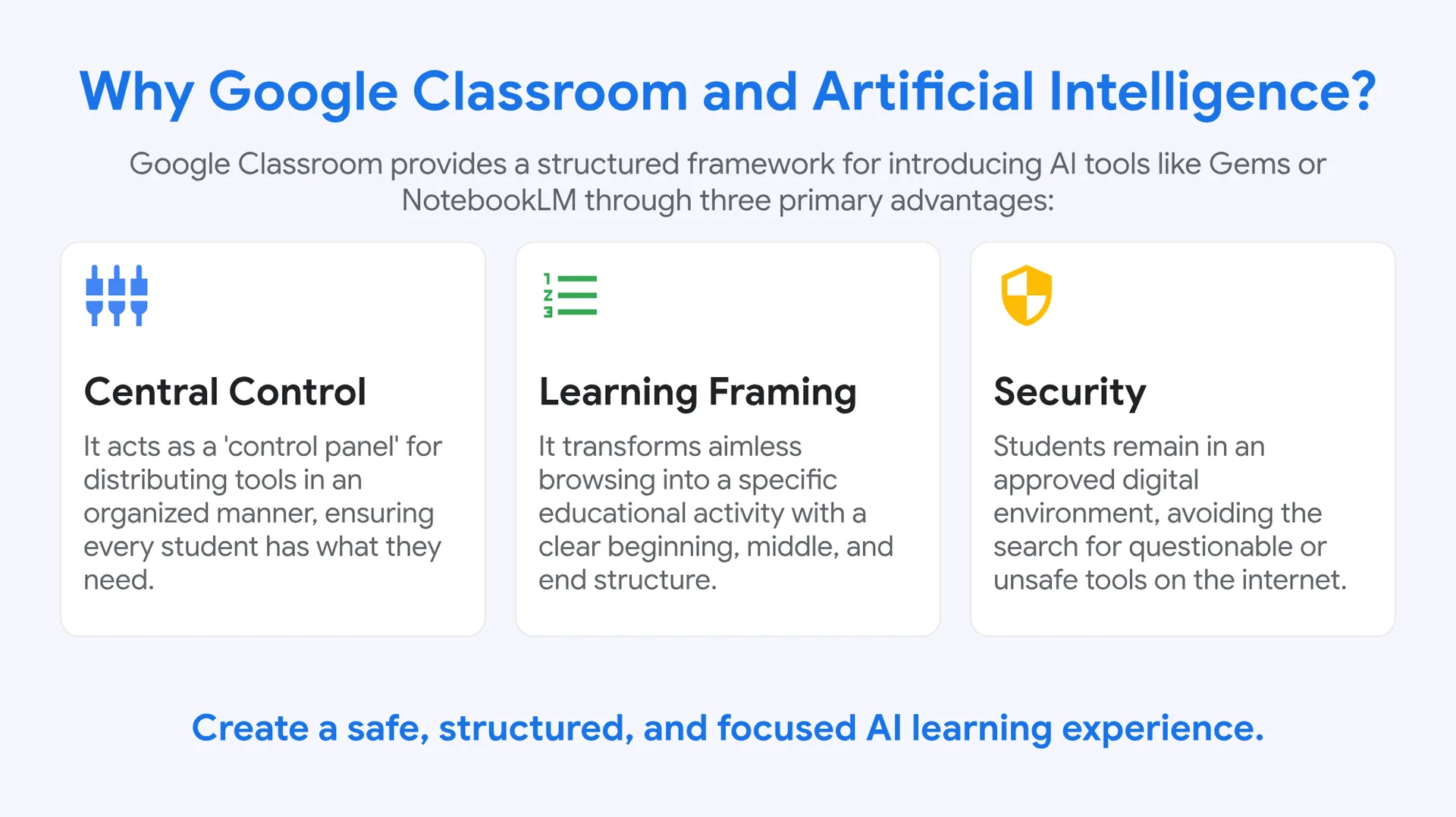
Why Google Classroom and Artificial Intelligence?
Google Classroom provides a structured framework for introducing AI tools like Gems or NotebookLM through three primary advantages:
⚙️ Central Control
It acts as a ‘control panel’ for distributing tools in an organized manner, ensuring every student has what they need.
🔢 Learning Framing
It transforms aimless browsing into a specific educational activity with a clear beginning, middle, and end structure.
🛡️ Security
Students remain in an approved digital environment, avoiding the search for questionable or unsafe tools on the internet.
Create a safe, structured, and focused AI learning experience.
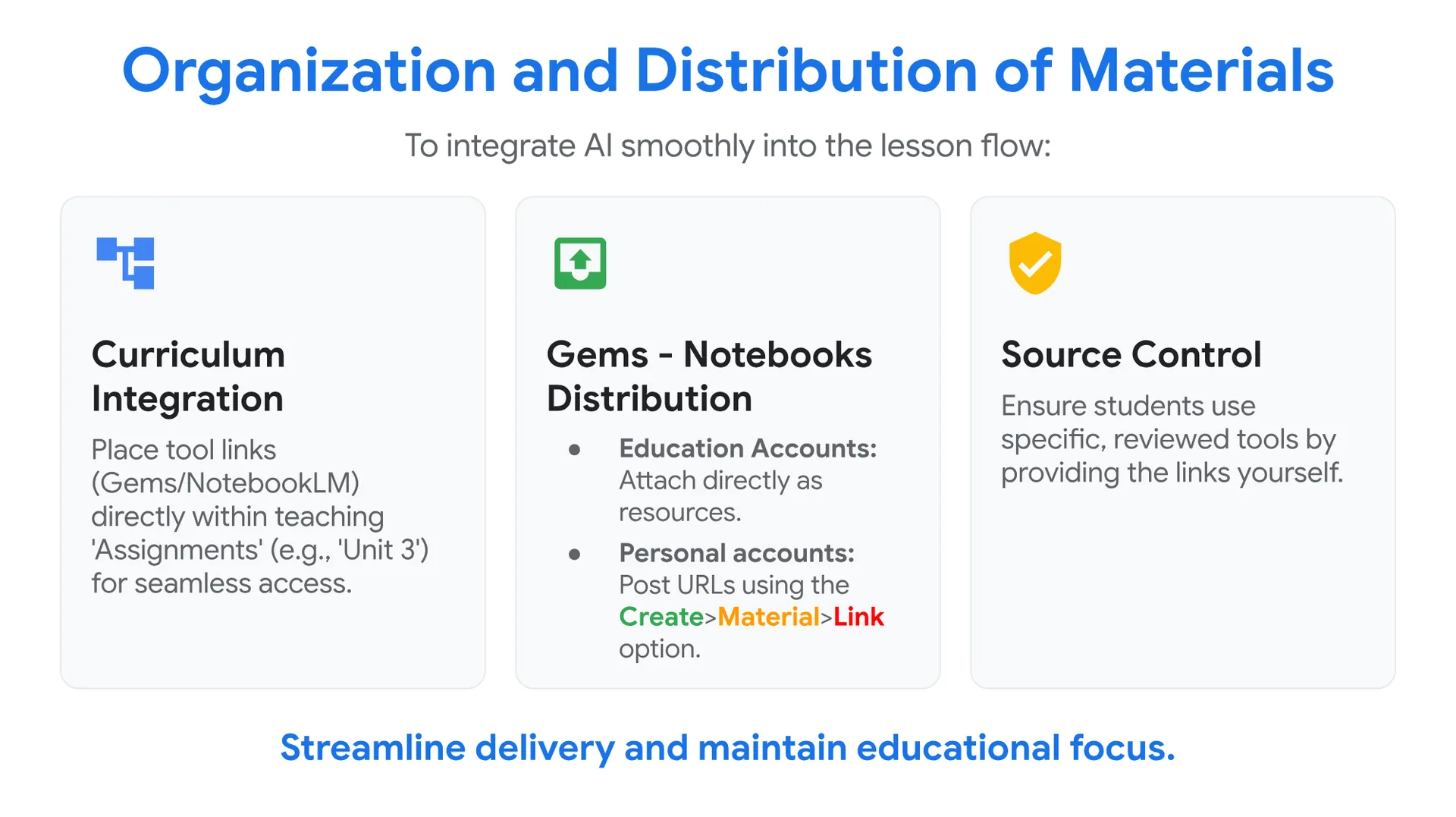
Organization and Distribution of Materials
To integrate AI smoothly into the lesson flow:
🗂️ Curriculum Integration
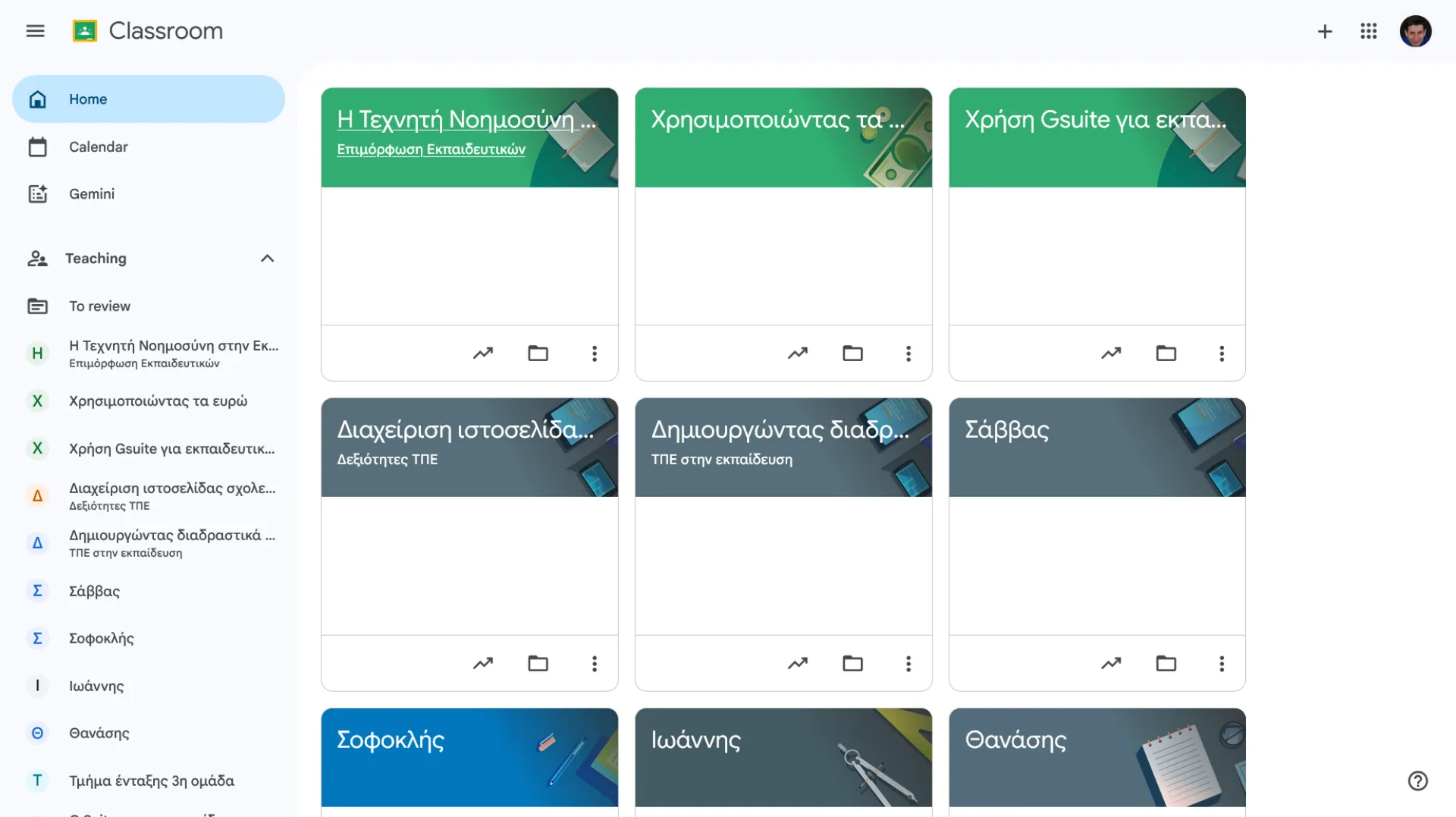
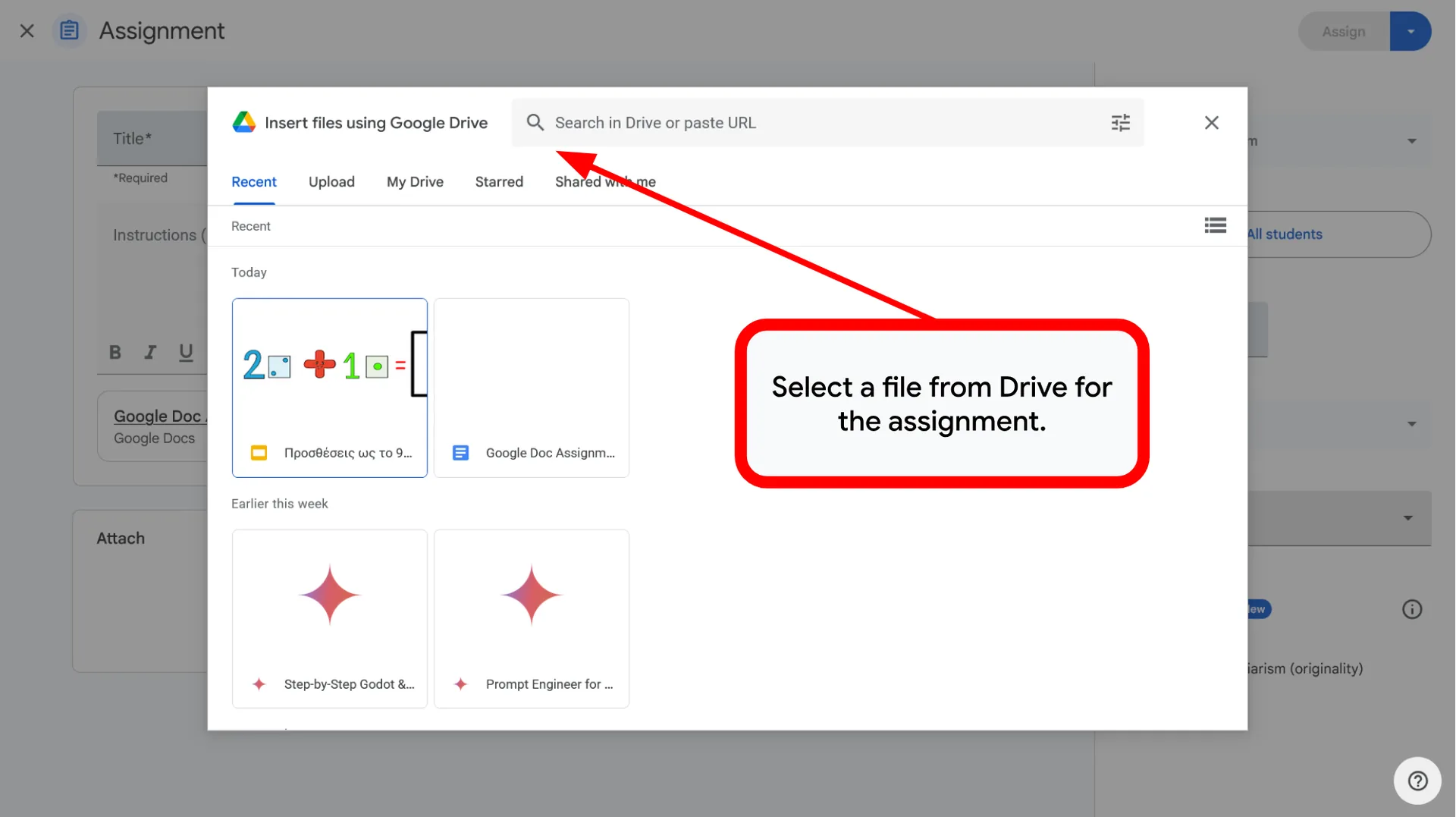
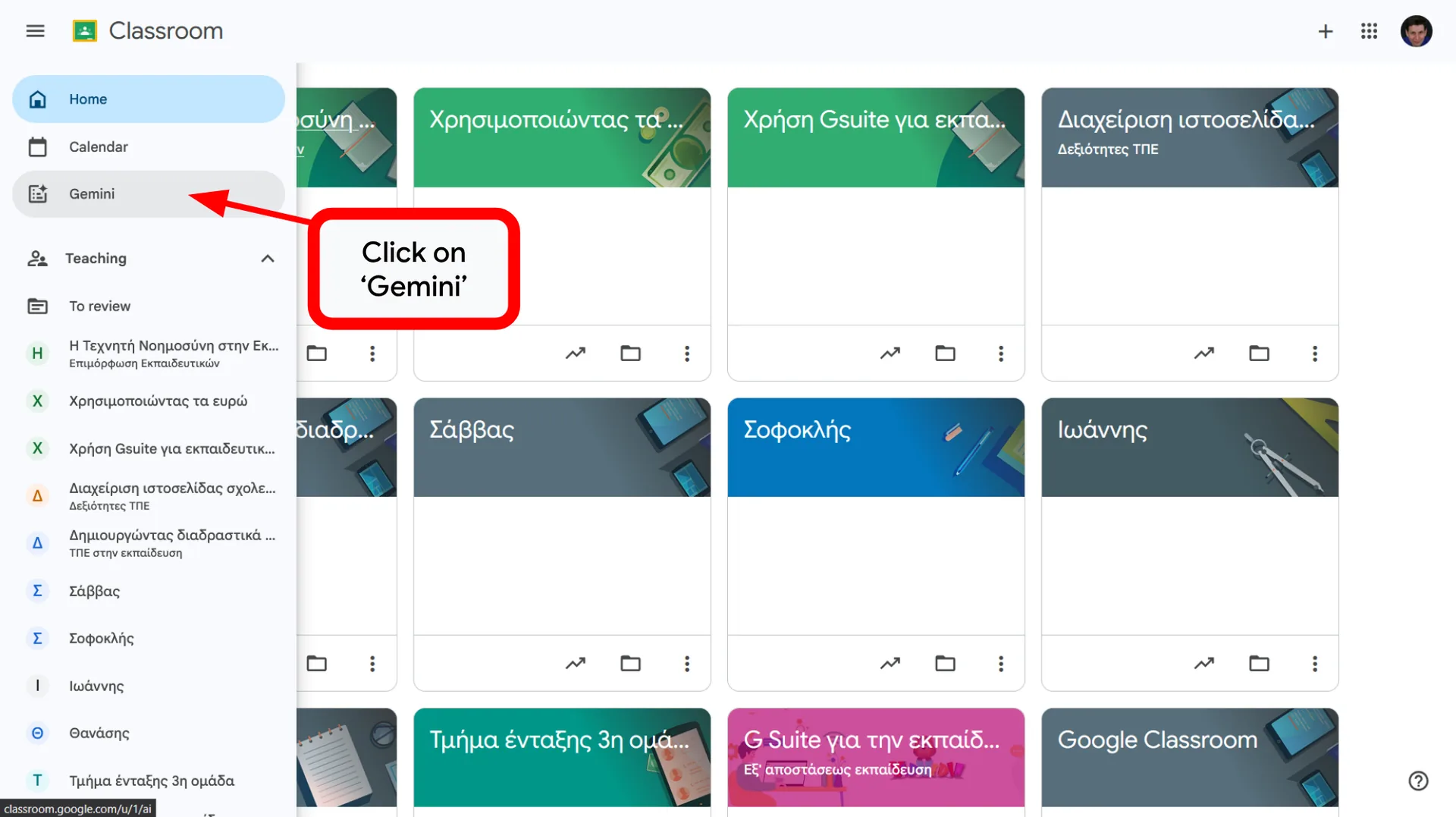
Place tool links (Gems/NotebookLM) directly within teaching ‘Assignments’ (e.g., ‘Unit 3’) for seamless access.
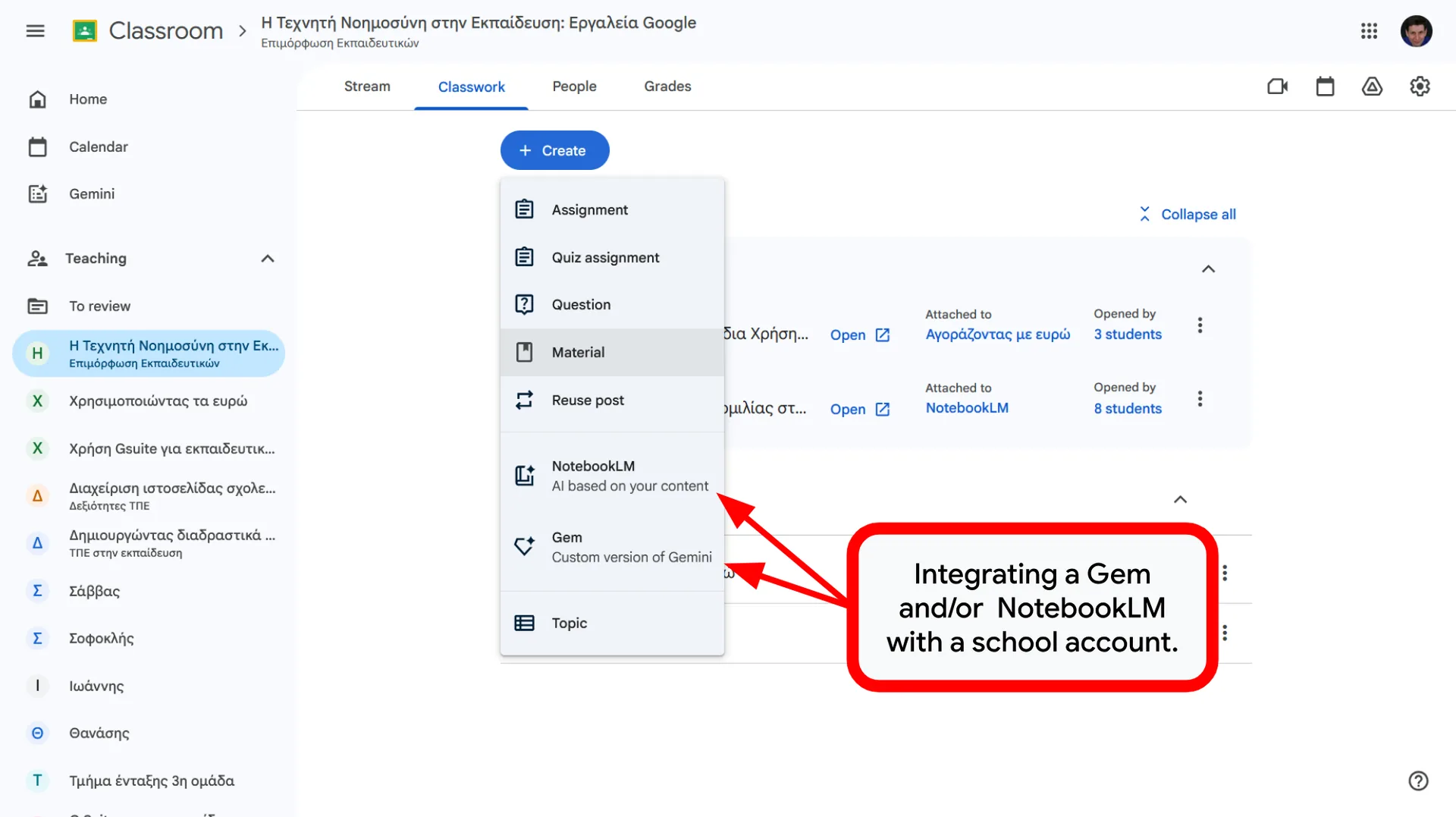
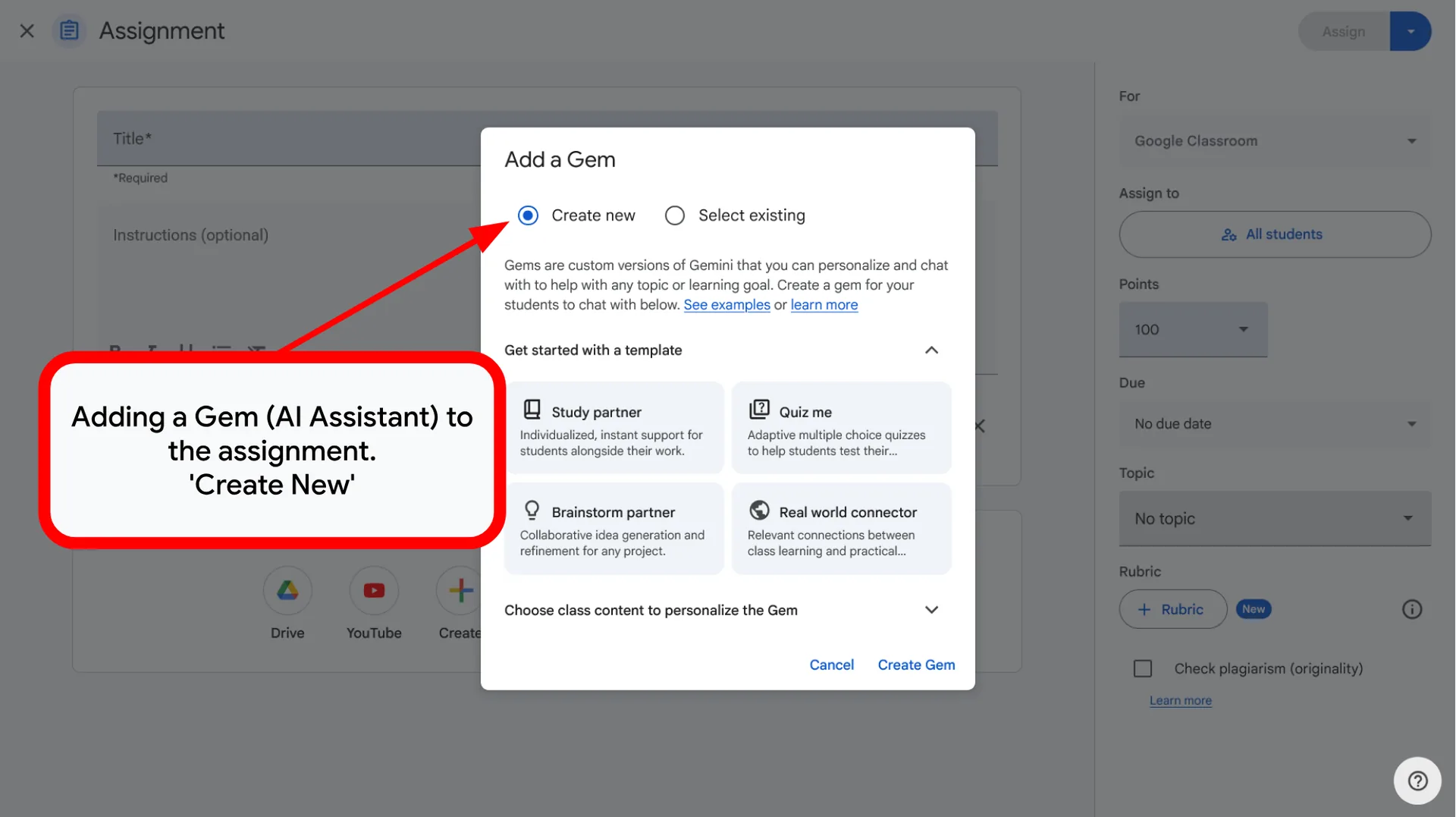
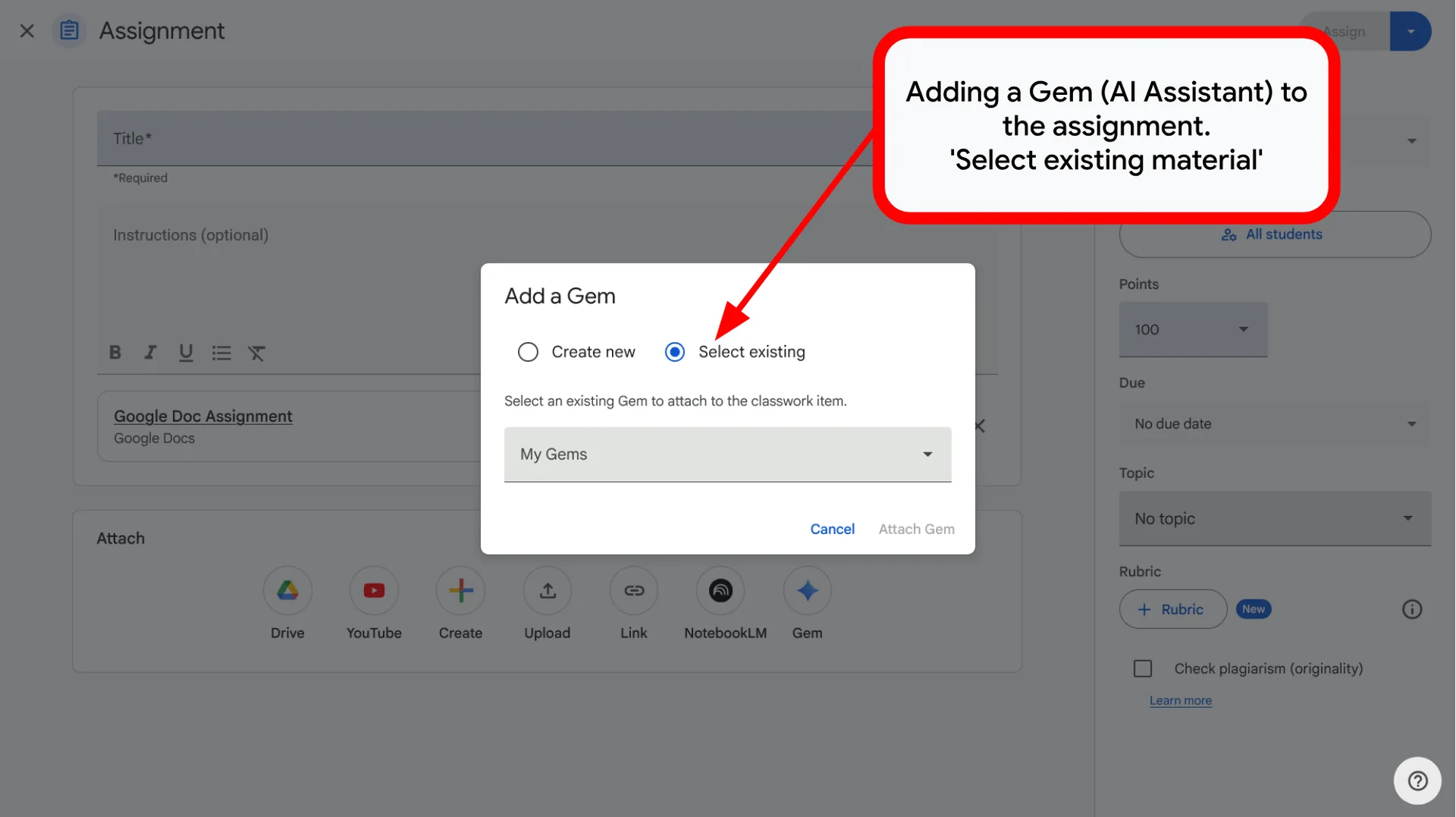
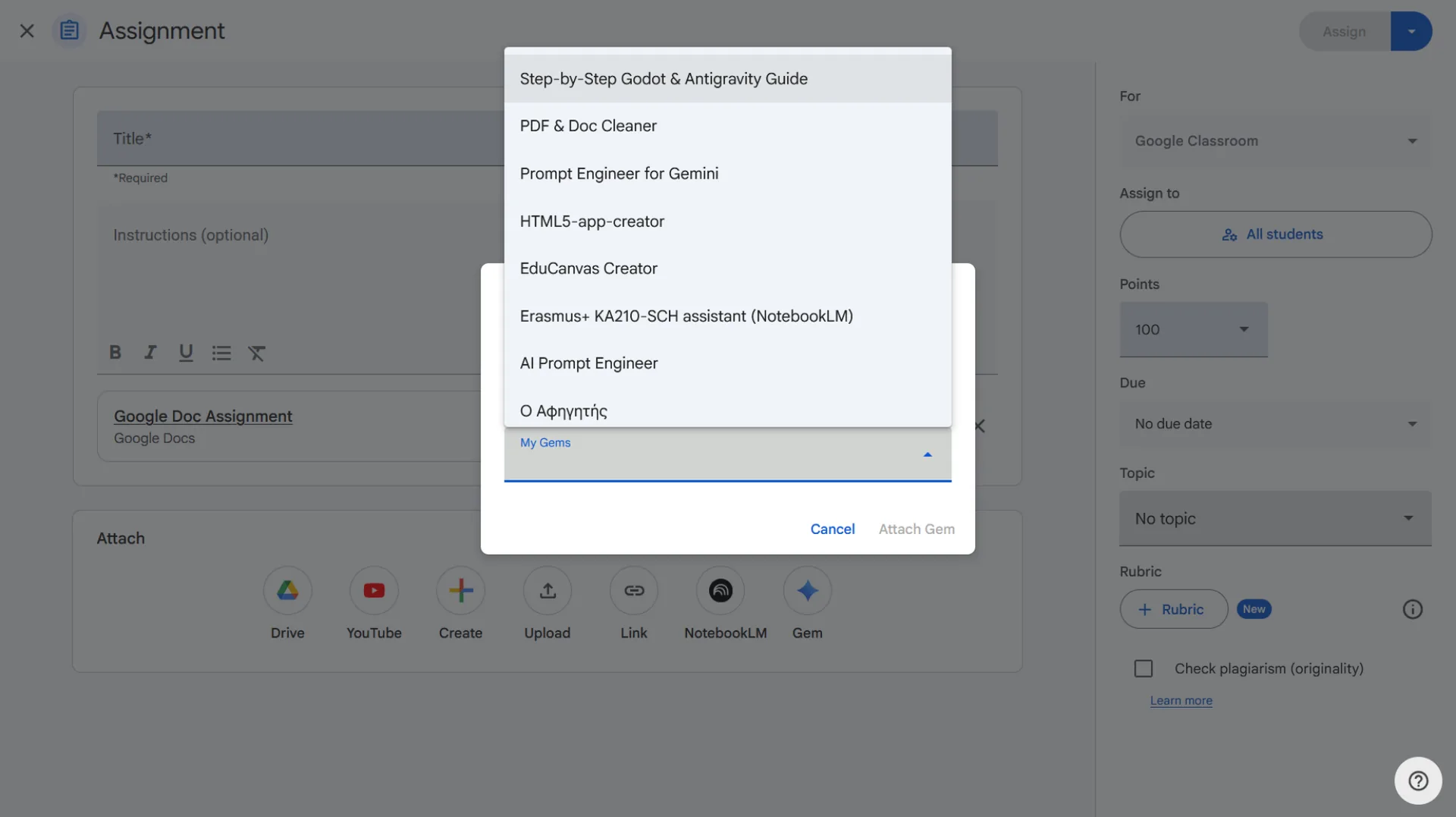
📤 Gems – Notebooks Distribution
Education Accounts: Attach directly as resources.
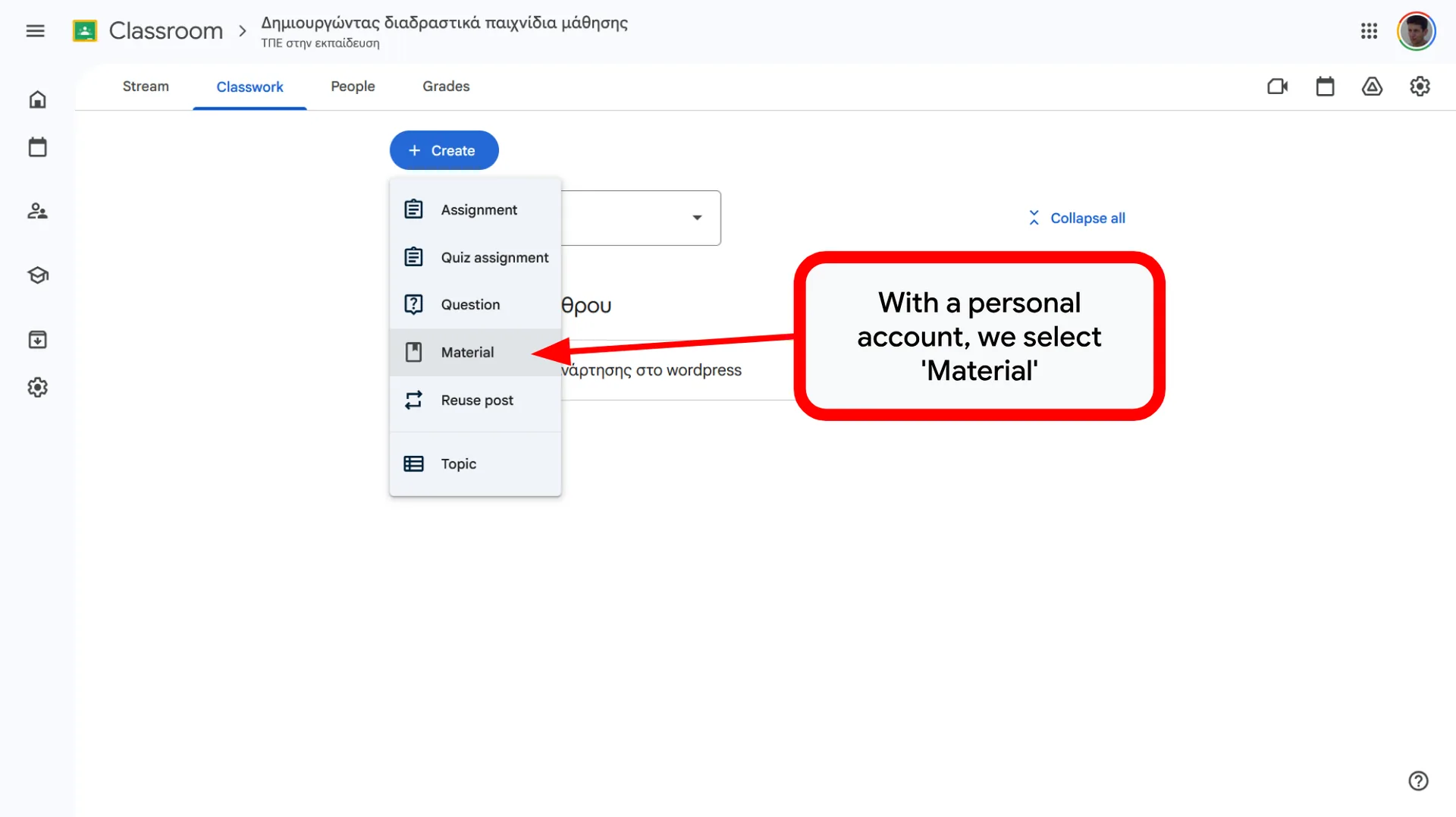
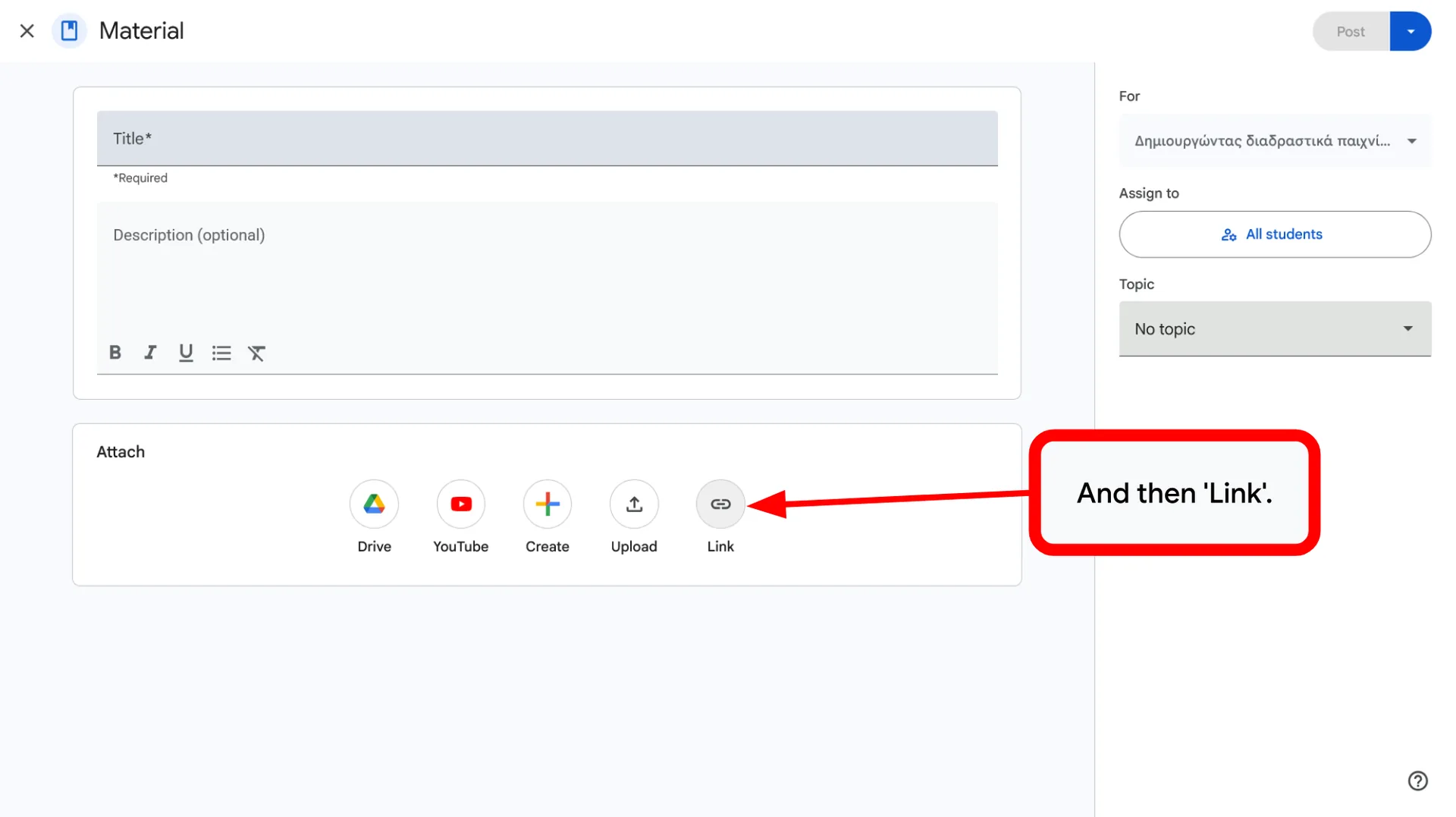
Personal accounts: Post URLs using the Create>Material>Link option.
🛡️ Source Control
Ensure students use specific, reviewed tools by providing the links yourself.
Streamline delivery and maintain educational focus.
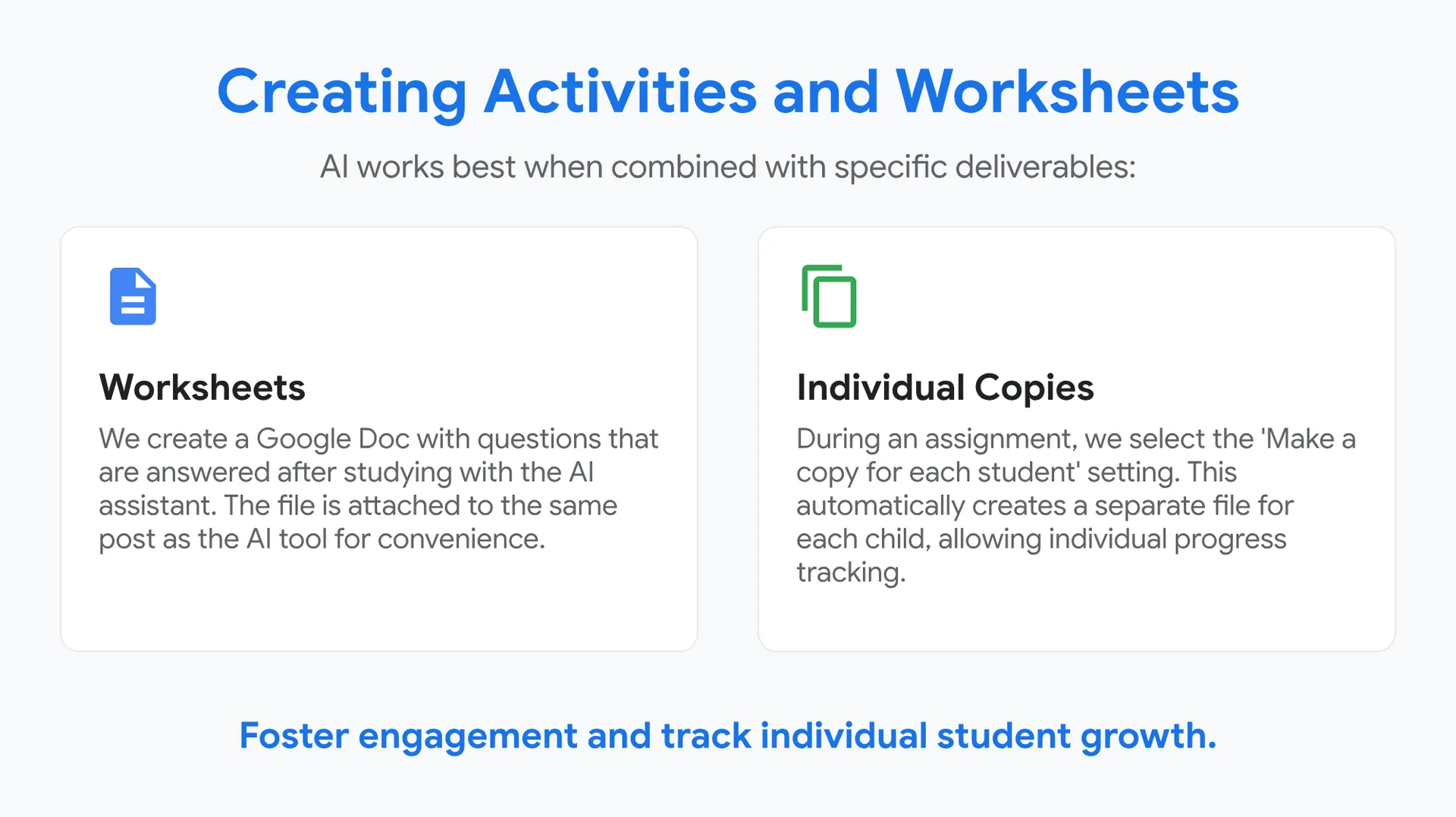
Creating Activities and Worksheets
AI works best when combined with specific deliverables:
📝 Worksheets
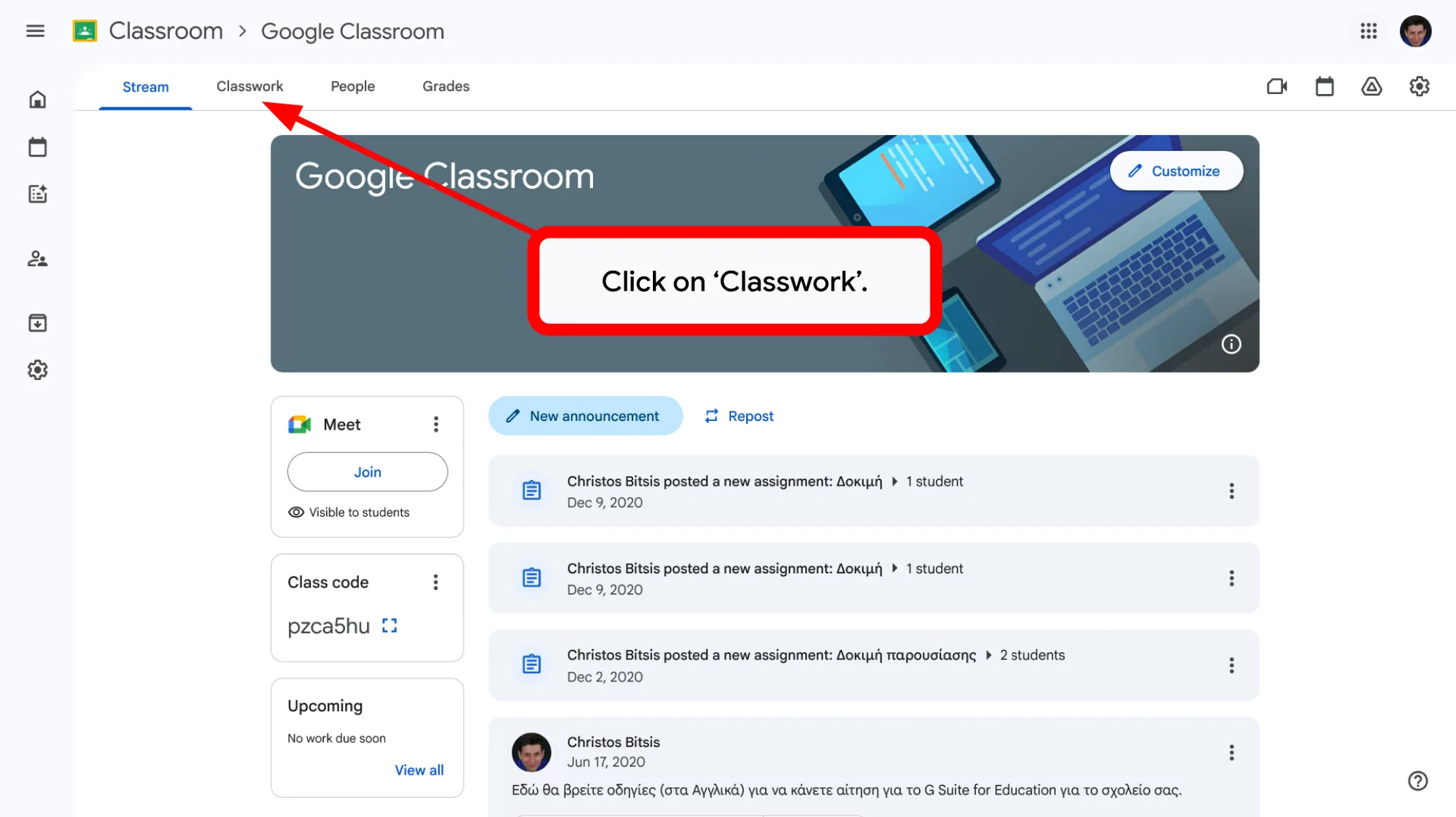
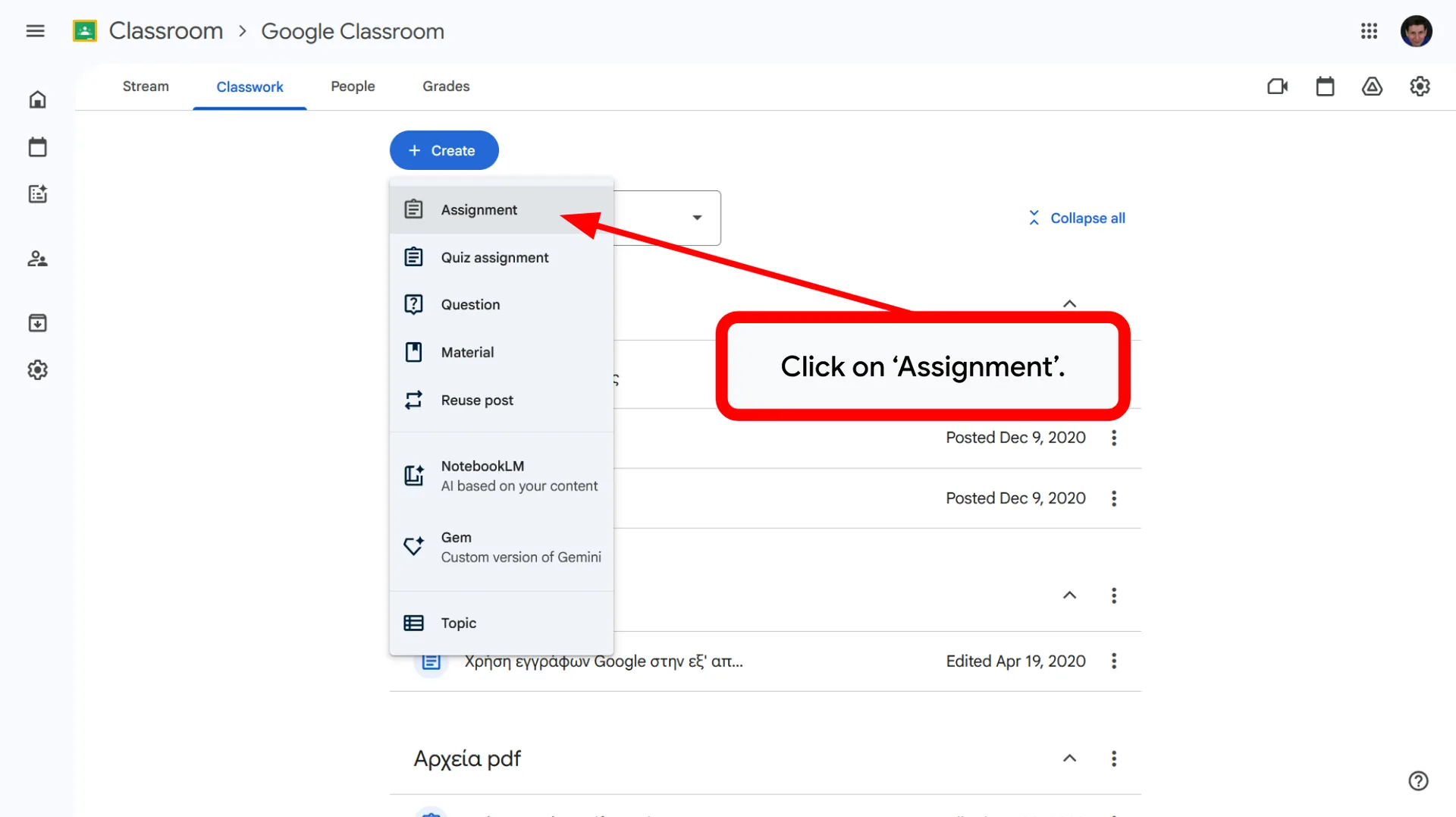
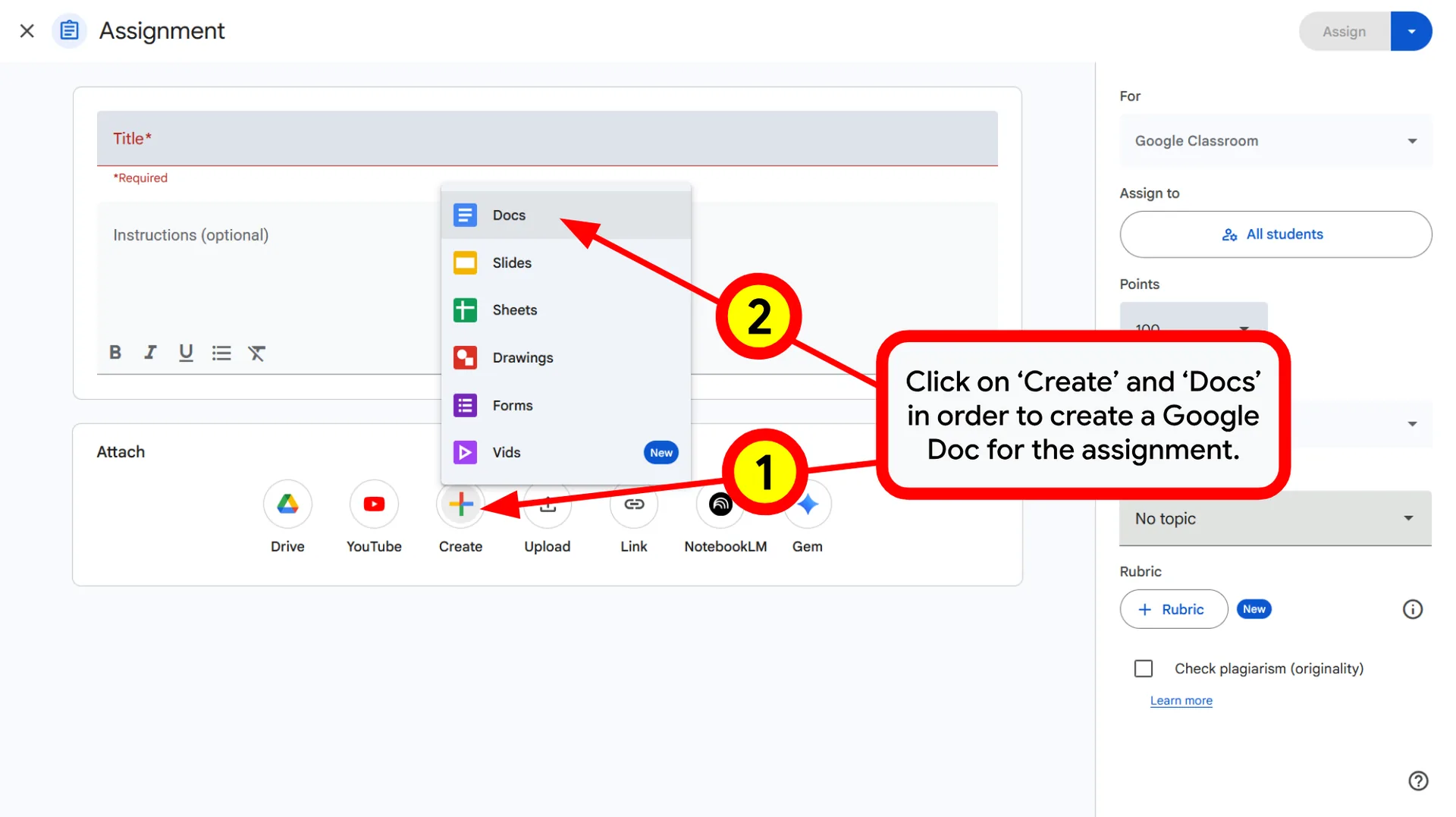
We create a Google Doc with questions that are answered after studying with the AI assistant. The file is attached to the same post as the AI tool for convenience.
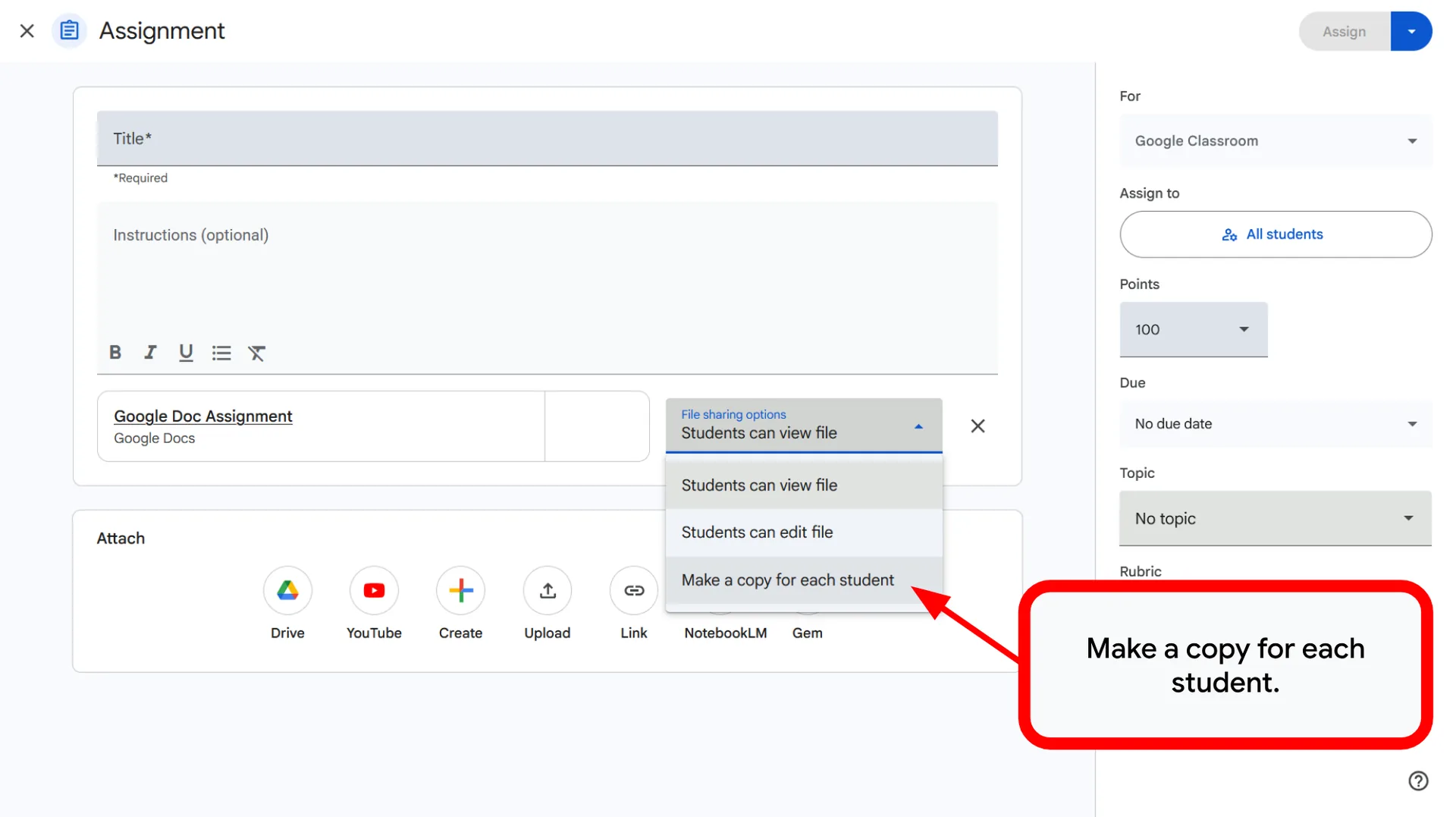
📑 Individual Copies
During an assignment, we select the ‘Make a copy for each student’ setting. This automatically creates a separate file for each child, allowing individual progress tracking.
Foster engagement and track individual student growth.
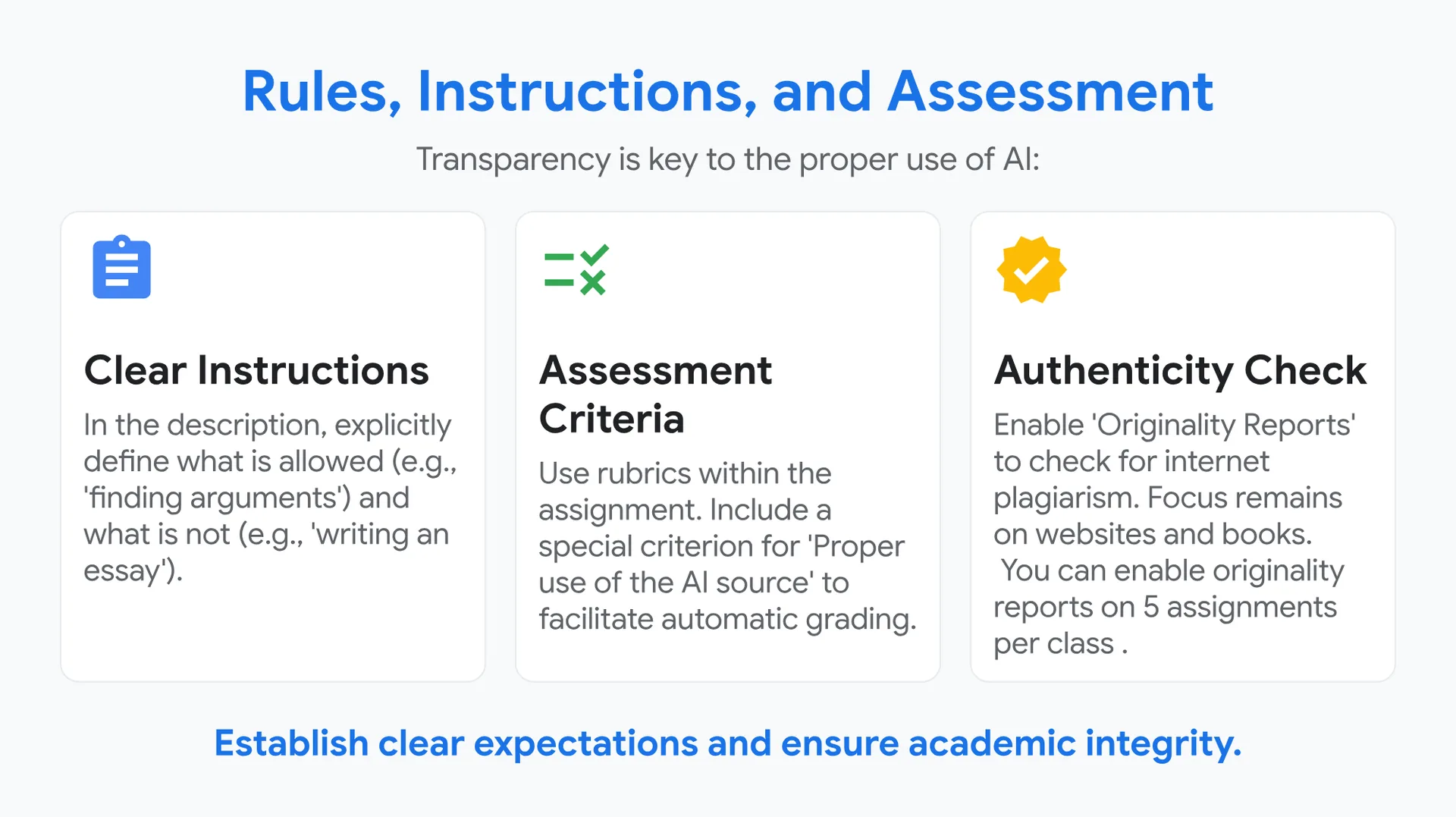
Rules, Instructions, and Assessment
Transparency is key to the proper use of AI:
📝 Clear Instructions
In the description, explicitly define what is allowed (e.g., ‘finding arguments’) and what is not (e.g., ‘writing an essay’).
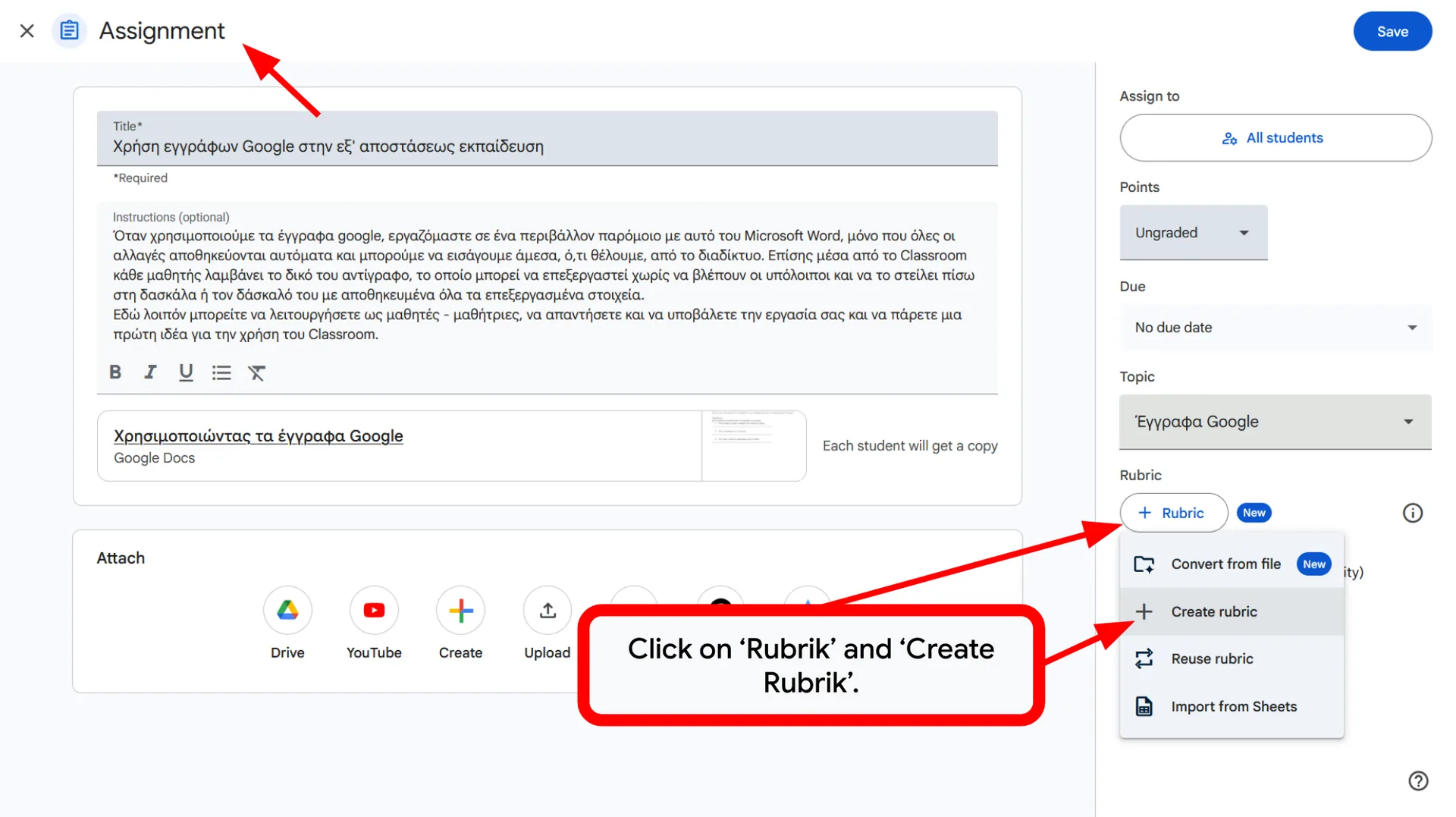
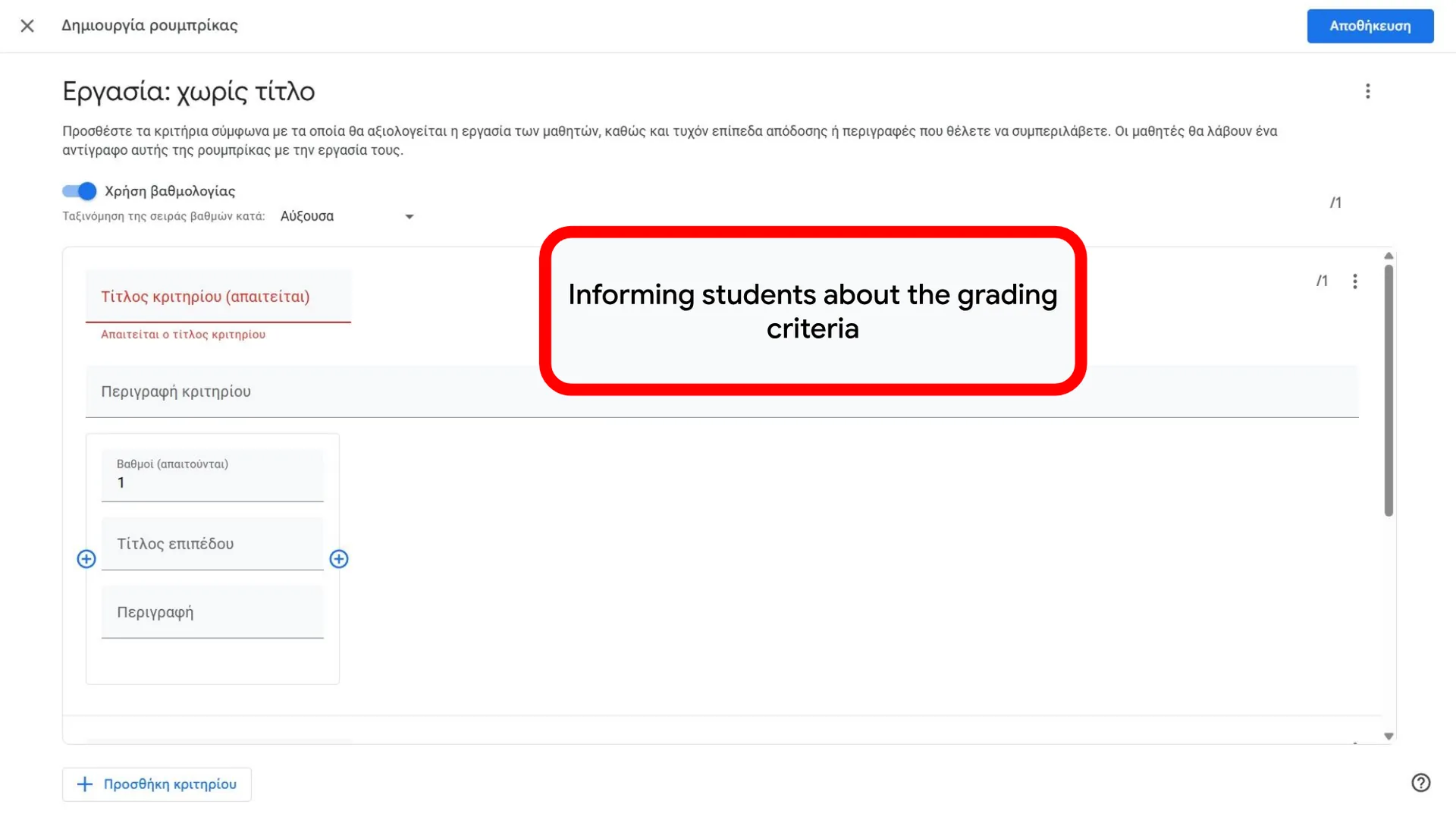
📏 Assessment Criteria
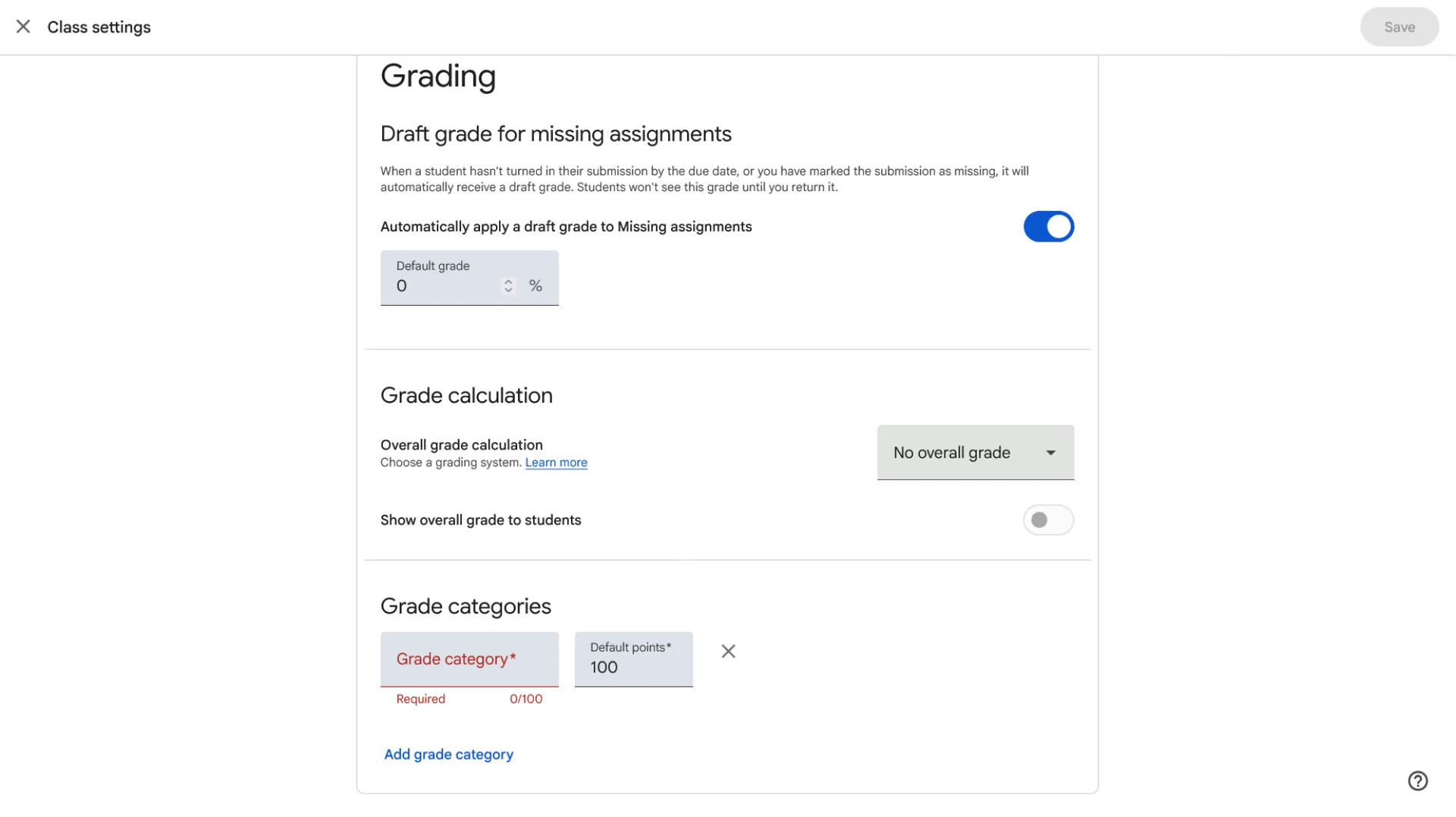
Use rubrics within the assignment. Include a special criterion for ‘Proper use of the AI source’ to facilitate automatic grading.
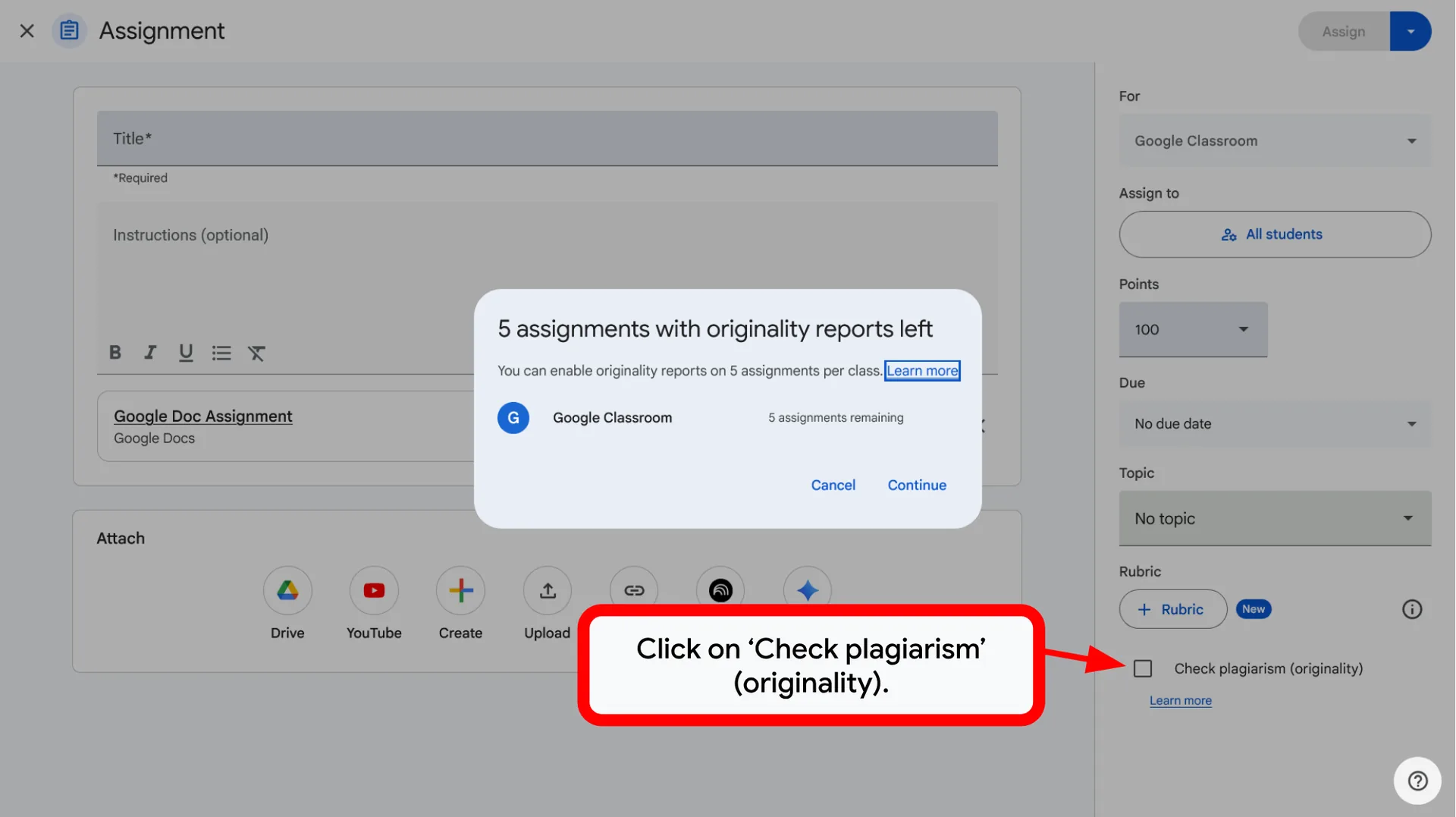
✅ Authenticity Check
Enable ‘Originality Reports’ to check for internet plagiarism. Focus remains on websites and books. You can enable originality reports on 5 assignments per class.
Establish clear expectations and ensure academic integrity.
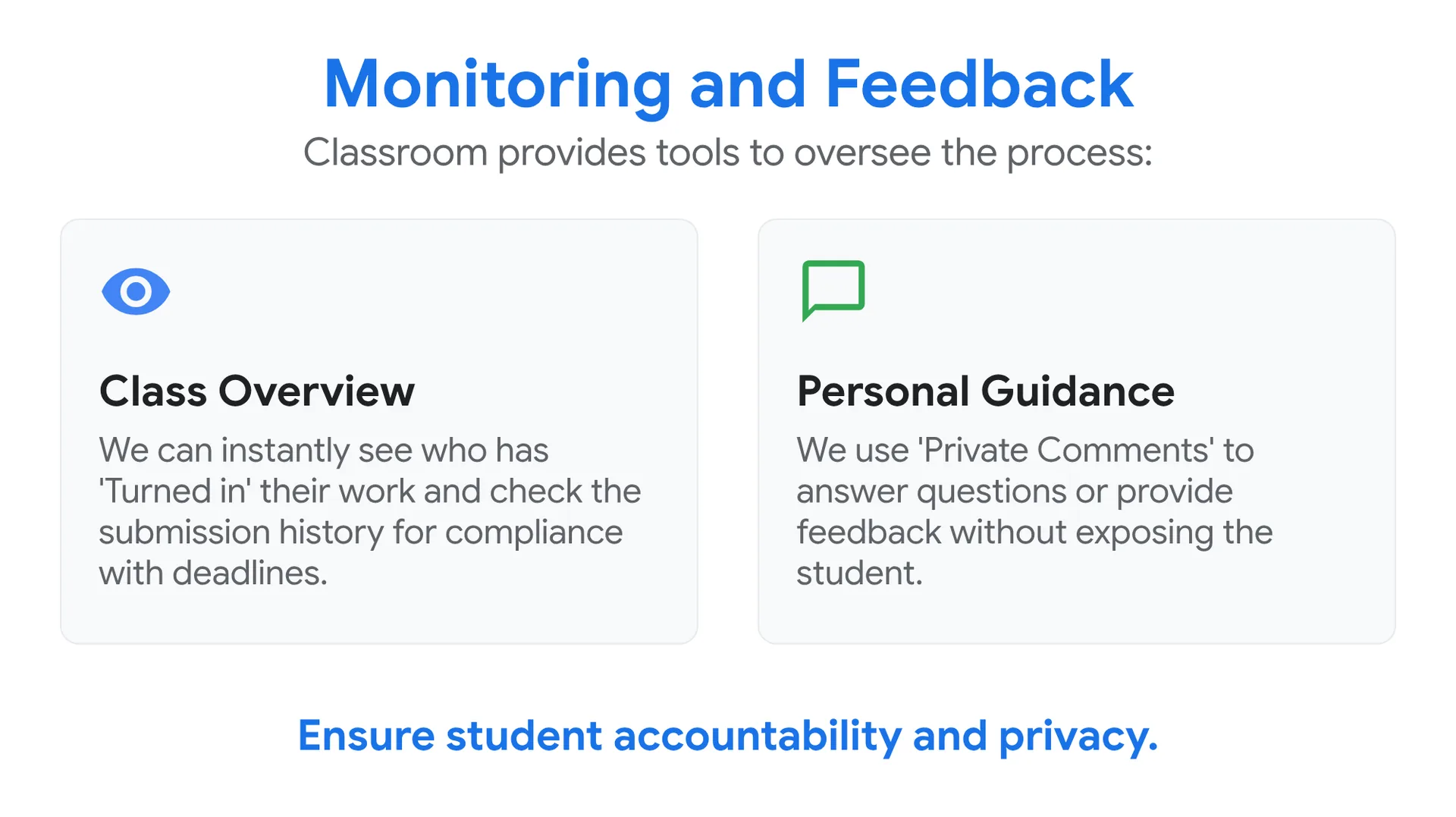
Monitoring and Feedback
Classroom provides tools to oversee the process:
👁️ Class Overview
We can instantly see who has ‘Turned in’ their work and check the submission history for compliance with deadlines.
💬 Personal Guidance
We use ‘Private Comments’ to answer questions or provide feedback without exposing the student.
Ensure student accountability and privacy.
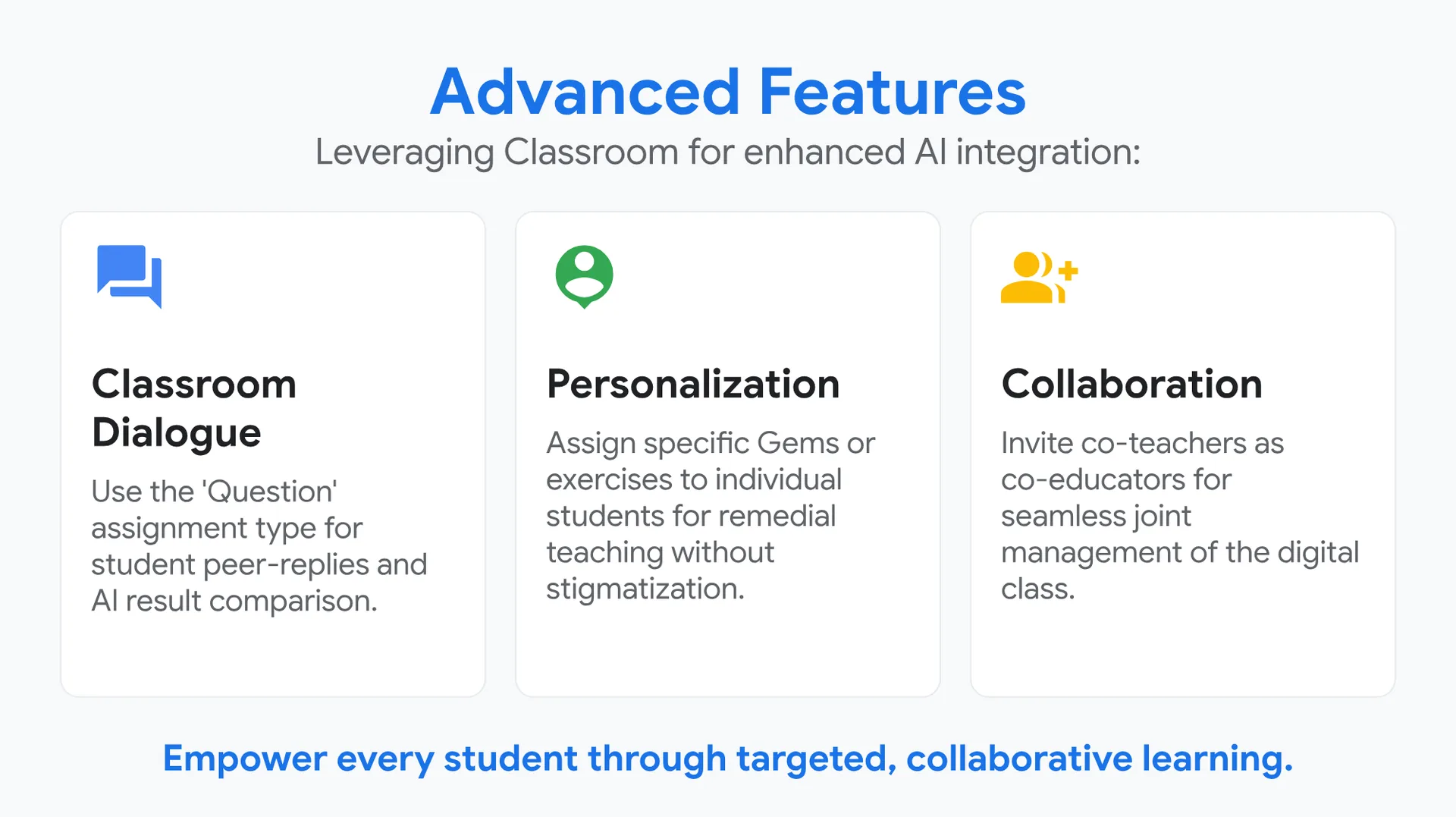
Advanced Features
Leveraging Classroom for enhanced AI integration:
💬 Classroom Dialogue
Use the ‘Question’ assignment type for student peer-replies and AI result comparison.
👤 Personalization
Assign specific Gems or exercises to individual students for remedial teaching without stigmatization.
👥 Collaboration
Invite co-teachers as co-educators for seamless joint management of the digital class.
Empower every student through targeted, collaborative learning.
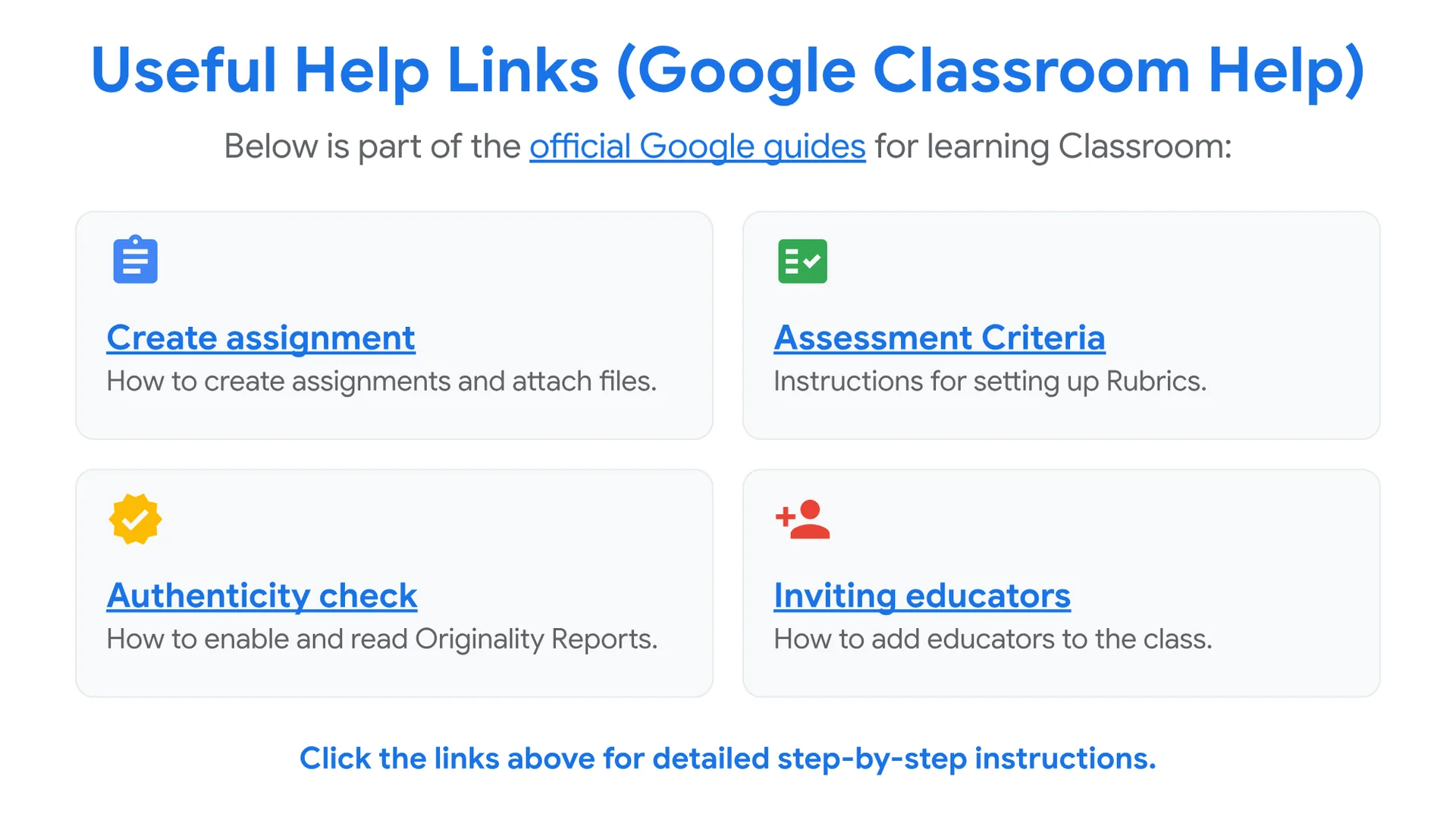
Useful Help Links (Google Classroom Help)
Below is part of the official Google guides for learning Classroom:
📝 Create assignment
How to create assignments and attach files.
📋 Assessment Criteria
Instructions for setting up Rubrics.
✅ Authenticity check
How to enable and read Originality Reports.
👤 Inviting educators
How to add educators to the class.
Click the links above for detailed step-by-step instructions.




You can ask your questions by writing a comment below. Your feedback will greatly contribute to improving the content of this course.
0 Comments